

Building an Effective Employee App for Internal Communication
Mobile apps are not just made for general consumers. Businesses can leverage mobile apps for a wide range of internal uses—including employee communication.
Internal employee communication apps are ideal for companies with a deskless workforce, remote employees, field service workers, or departments that are isolated from one another.
Apps make it easy for employees to communicate with each other and find useful information without having to call headquarters or human resources.
Key Takeaways
- Efficiency Boost: Employee apps streamline communication and reduce the need for time-consuming calls.
- Resource Access: Apps provide instant access to company directories, training materials, and handbooks.
- Cost Savings: Implementing an app can save time and money by simplifying internal processes.
- Scalability: Suitable for organizations of any size, from small businesses to large enterprises.
- User-Friendly Creation: Platforms like Buildfire allow app creation without technical expertise.
Take a moment to assess your current process for internal employee communication. How does a remote worker contact someone in another department? How can a field service employee access your company directory? Is your process efficient?
In most cases, employees are forced to call a general helpline to connect with their co-workers. A receptionist or someone in the HR department has to either transfer the call accordingly or relay the necessary contact information. It’s a time-consuming process and labor-intensive for everyone involved.
But an internal communication app gives everyone the ability to reach anyone in the company instantaneously, at their fingertips, from anywhere.
In addition to the direct communication features, an app can give your staff a wide range of other employee resources. Management can use the app to send out company news and updates. Staff can access training materials and employee handbooks on the go. Tasks that would normally require a five or ten minute phone call and multiple points of contact can be completed in seconds.
Ultimately, creating a workforce app saves time, money, and improves the efficiency of basic tasks—especially for internal communication.
Whether your organization has 20 employees, 200 employees, or 2,000+ employees, you can benefit from building an internal workforce app.
The best part? You can build an app on your own without any technical knowledge or development experience. If you know how to navigate the Internet, you can create an app with Buildfire.
Table of Contents
This guide will walk you through the step-by-step process of building an employee app using Buildfire. While the guide reads best from top to bottom, feel free to use the clickable navigation to jump between sections. Some of you might be further along in the building process than others.
Here’s what we’re going to be building:
Setting up the Navigation for Your App
Creating Functionality and Adding Features
Previewing Your App and Publishing to the App Store
Getting Started
First, sign up and create an account.
Before you do anything, you’ll need to create your Buildfire account. Just go to buildfire.com and navigate to the “Build an App” button in the top right corner of the page. You can also click here to sign up and get started.
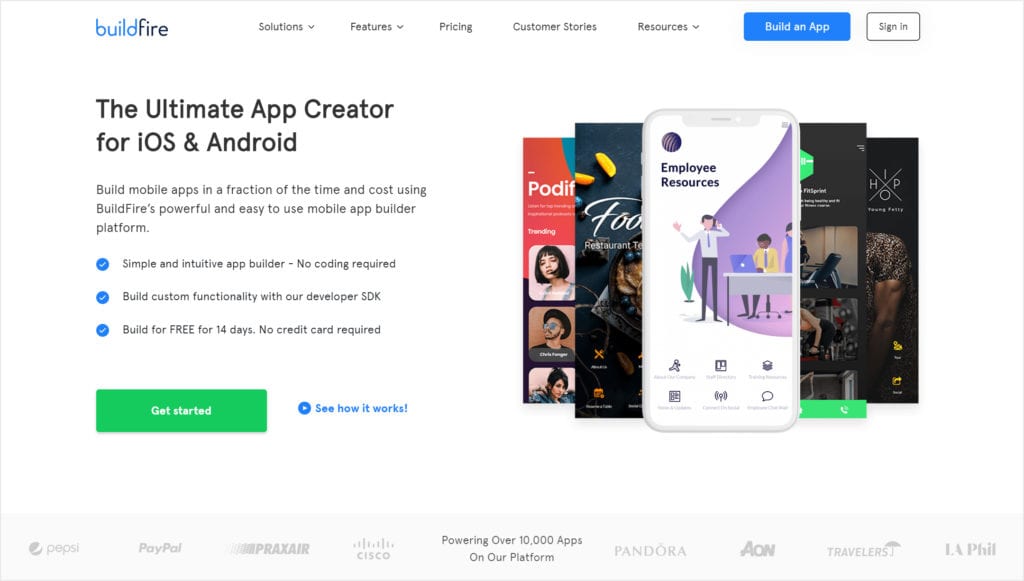
You’ll be presented with multiple ways to build an app—Buildfire DIY, White Glove Setup, or Buildfire Reseller.
For the purposes of this tutorial, select Buildfire DIY to build an app on your own.
The first step to creating an account is choosing a template. If you’ve ever designed a website on your own using a site builder, the same concept is applied here.
Rather than starting out with a blank canvas, you can simply browse through the various templates that we have. These templates already have some design and structure built-in.
Find something that’s suitable for your branding and app purpose. Browse by category on the left side of the screen. Whenever you click on a template, the app preview on the right side of the screen will adjust in real-time.
Once you select a template, continue to fill out the form fields on the screen to complete the account creation process.
Platform Tutorial
What is Buildfire? For those of you who are new and unfamiliar with us, I just want to take a moment to quickly describe our product.
Buildfire is a platform that allows people to build mobile apps with no coding required. You’ll create the app using modular units of app functionality called plugins. If you’re looking for a feature that you don’t see on our marketplace, you can create advanced functionality with the Buildfire SDK.
How to navigate the Buildfire control panel:
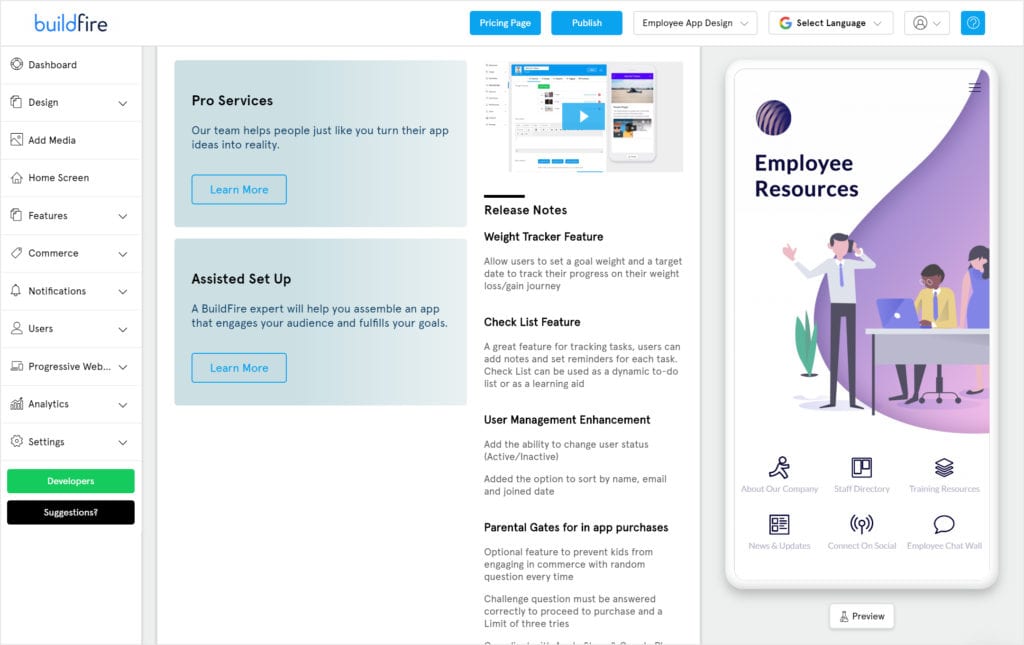
Using Buildfire is easy. Simply use the emulator to navigate around your app. Any time you add a feature or make custom changes, everything will be updated in real-time.
Whenever you click on an app page or feature on the right side of the screen, the corresponding configuration will be loaded in the center of the control panel.
You can also navigate to the “My Features” menu on the left side of the dashboard and locate specific features in there.
To add functionality to your app, just add a plugin. These units of functionality can easily be applied to your app with a single click. Simply browse the marketplace to search for features. All you have to do is create the feature and then link to it. You can link to features from your home screen, side menu, sticky footer, or any other clickable area of your app to make it accessible.
There are certain core features that every app should be using, regardless of your industry, use cases, or primary app function. Those features include in-app purchases, push notifications, and user login.
Step #1: Set up the Navigation For Your App
Now that you have a basic understanding of how Buildfire works, let’s get started building your app with a quick win.
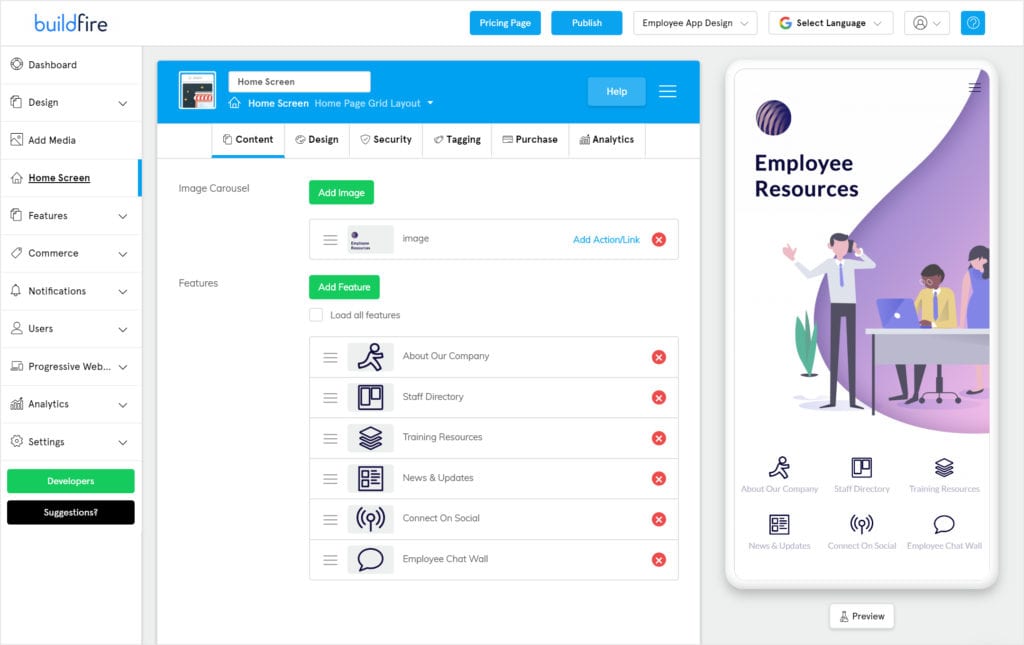
Choose Your Home Screen Layout
The easiest way to start building your app is with the home screen. Your home screen is the first thing that users will see when they log in, so it should link to the most important features of your app. Home screens will serve as the p
rimary navigation page for the app.Top homepage layouts for an employee app:
- Layout
- Layout
- Layout
All of these home screen layouts are available in the marketplace. Once you assign a home screen feature to your app, you’ll have the ability to customize the layout even further by going to the “Design” tab.
From here, you can customize images, icon layouts, color schemes, and more.
The template that you choose will automatically have a particular home screen feature built-in out of the box. But you can change the home screen to be anything that you want.
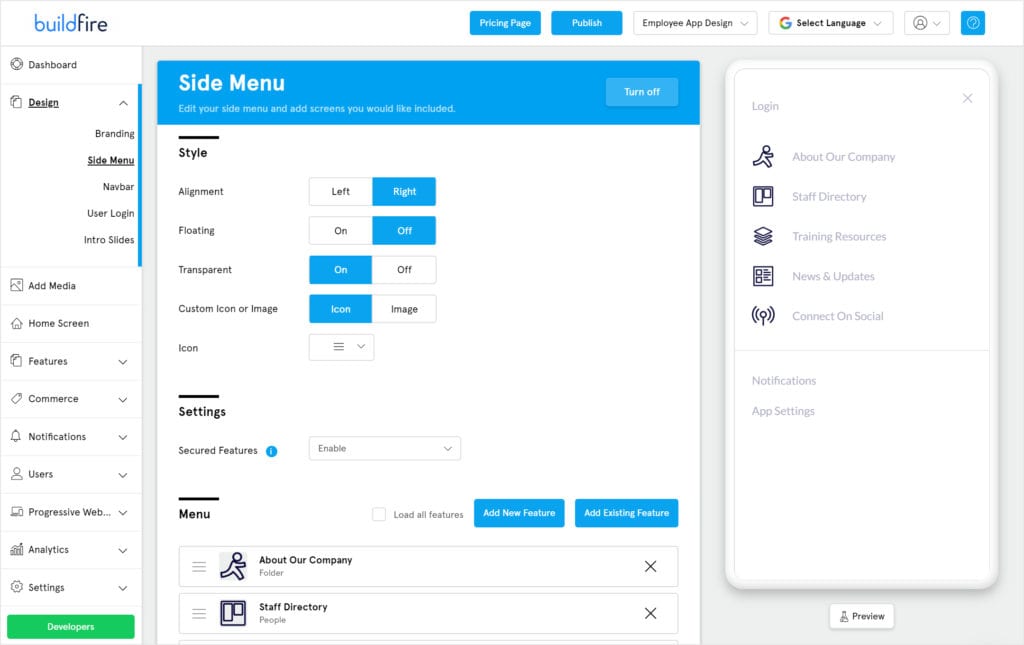
Setting up your side menu.
In addition to the home screen, your side menu will make it possible for app users to navigate to your most important pages from any screen without having to return home.
To set up your side menu, simply check the “add to side menu” box when you’re adding a new plugin from the feature marketplace.
Alternatively, you can select “Side Menu” from the “Design” menu on the left side of your dashboard. From here, you can add an existing feature to your side menu, change the order of your side menu, and fully customize every aspect of the display.
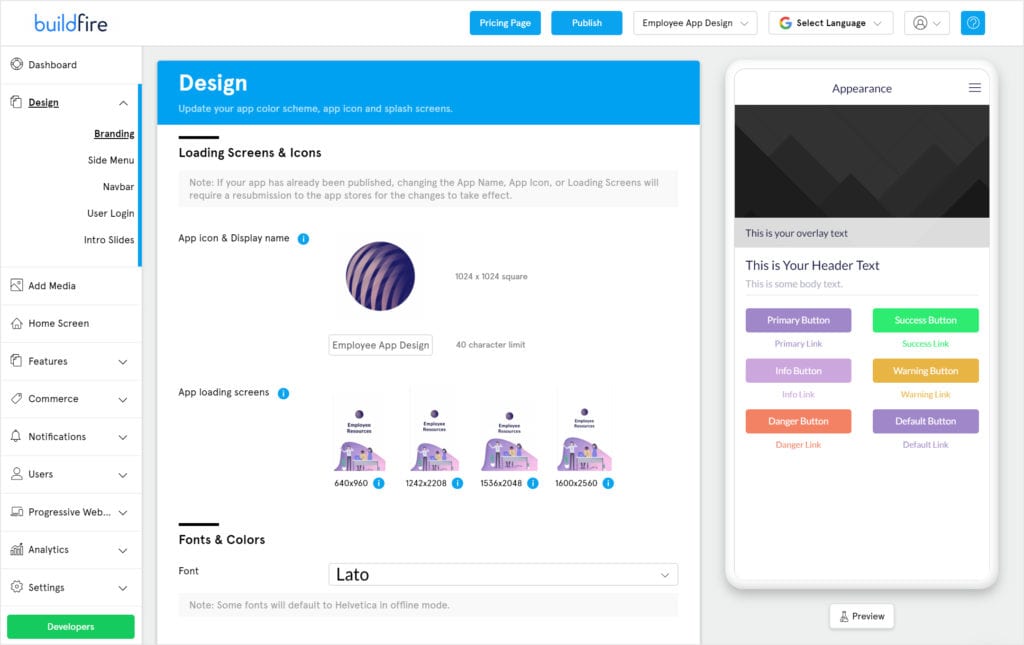
Customize the color scheme and branding for your app.
This is another easy win for you to accomplish as you’re getting started building an employee app and getting your feet wet with the Buildfire platform.
Click “Branding” from the “Design” menu on the left side of the dashboard.
You’ll be able to customize your app icon, loading screen, fonts, colors, and all of the other branding aspects associated with your employee app. The theme you choose will automatically come with a preloaded color scheme, but you can change this to something that matches your website colors or official corporate branding.
Step #2: Create the Functionality For Your App — Adding Features
Now it’s time to start building out the app with features. Head over to the marketplace, which is where you’ll be able to search for most of your app’s features.
To add a new feature to your employee app, simply search the marketplace for the function you need, and click on the green add button. Then you can head to “My Features” to customize that feature with the required content.
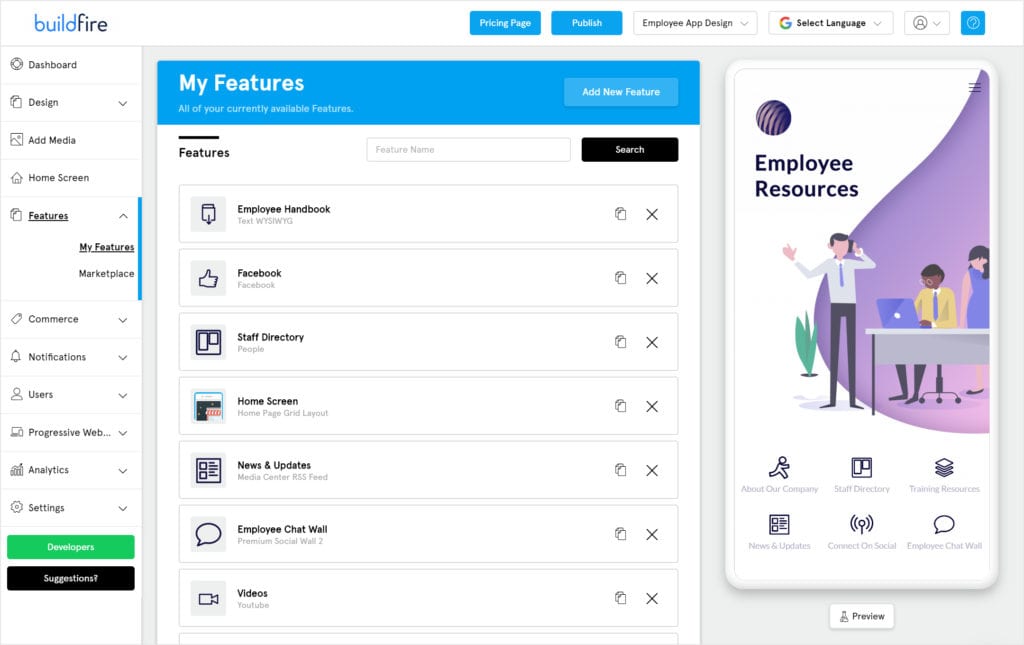
The majority of the features in the marketplace are from Buildfire. However, you might find some third-party plugins that have been added to the marketplace because we have an open platform. So other developers have the ability to contribute and add features in here as well.
| Feature Source | Description |
|---|---|
| Buildfire | Most features are developed by Buildfire. |
| Third-party | Some plugins are contributed by other developers due to the open platform. |
Here are the top marketplace features your employee app will need:
After seeing clients build successful employee apps, we’ve identified which features are the best for this type of app. Again, you can find all of these from the Buildfire marketplace and add them to your app in seconds.
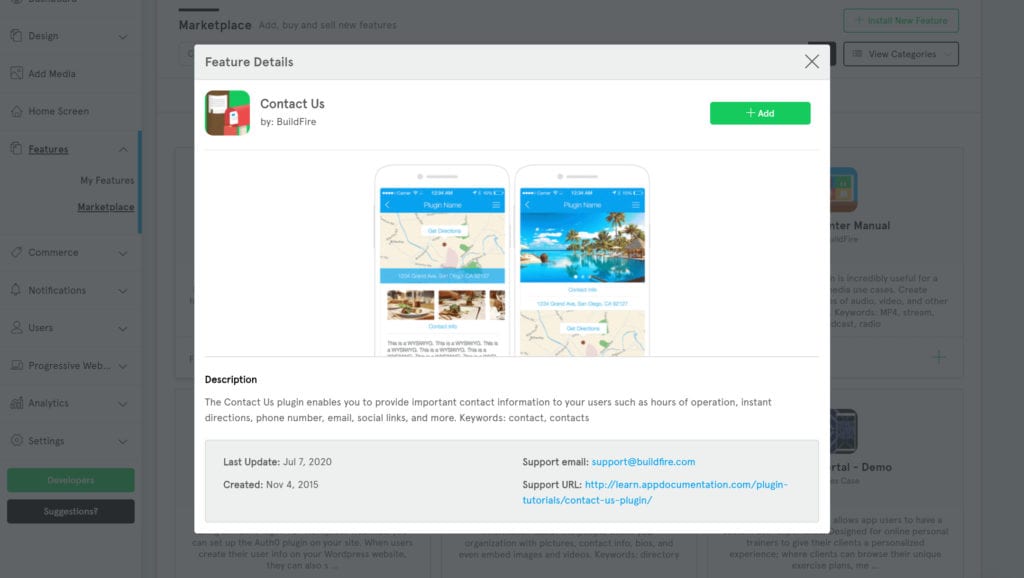
Contact Us
The Contact Us feature is the best way for your workforce to communicate with the company headquarters and find the main numbers that they need as fast as possible.
This plugin will come pre-filled with data, to give you an idea of how it will work. Once you add it to your app, you’ll need to customize the content with your own information.
- Supports multiple contact methods, such as phone, email, or social media.
- Include company headquarters address with a map view.
- Ability to add custom text, headers, and useful corporate contact information, such as hours of availability.

People
The People plugin is perfect for creating a staff directory. You can easily import a CSV file with all your employee information, as opposed to adding each employee manually.
Each member of your staff will have an individual profile that includes their name, photo, position, contact information, bio, and anything else that you want to add.
- Allow employees to search the directory by name.
- Easy to locate contact information for each employee.
- Include helpful details, such as a short bio, for everyone on your team.

Realtime Chat
As the name implies, this feature allows your employees to communicate with each other in real-time. There is a limit of 10,000 messages per month. So for larger organizations, this won’t necessarily be a replacement for Slack or another internal messaging system.
- Instant messaging functionality.
- Employees can communicate with team members directly from the app.
- Group chats and private chats are both available.
How to Preview and Publish Your App to the App Store
During the app building process, you’ll always be able to see the changes you’re making in real-time on the right side of the screen with the app previewer. This gives you a sense of what the app will look like from an end-user perspective.
But if you want to preview the app on your device, simply click the “Preview” button on the bottom right corner of the screen, beneath the web previewer.
You’ll see a pop-up window prompting you to enter your phone number.
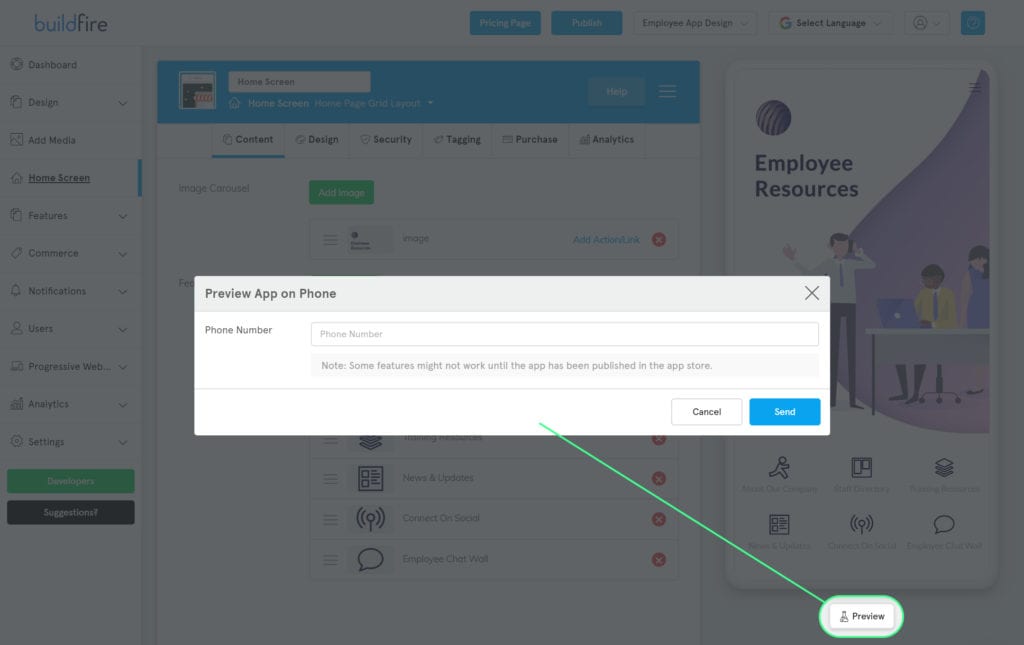
While you don’t have an iOS or Android build yet, you’ll get a text link to a PWA—progressive web app.
Frequently Asked Questions
How can an employee app improve internal communication?
An employee app streamlines communication by providing instant access to contact information and messaging features, reducing the need for time-consuming calls.
What features should be included in an employee app?
Essential features include messaging, company directories, training materials, and push notifications.
What are the cost benefits of using an employee app?
Employee apps can save time and money by simplifying communication and reducing the need for physical resources.